Showing posts with label Android. Show all posts

Thursday, April 3, 2014

And Nexus 5 It Is

After posting about backing up and the Triangle of Death, the inevitable happened. Old phones especially those that are a little more than 2 years old can die. The interesting thing with these solid polycarbonate mold injected phones, is that there is no way to pop the battery out or even check the insides if the problem is related to a mechanical switch defect. No, they cannot be opened up. So it would be interesting to see how the service center takes care of it.


This brings up the need to get a new unit then. And having a dead phone for four hours, that is, being disconnected with your contacts for just four hours can mean that 'something has happened to you' to them. It can also make you feel out of touch, and the rush to get back online can make things happen quickly. At least those times when you would normally go back to the internet and read on more articles comparing specs and reviews, are reduced to remembering what matters most and what is needed urgently.

And so the search for the next phone to replace an old trusty one began. Amidst the rows of Samsung handsets on one corner of the store, both faux-leather-backed and not, neatly arranged against the backdrop of colorful back covers, flip covers and hard covers and small pockets of offerings from the Chinese (Huawei, Oppo, Lenovo), the other Korean (LG) and the Taiwanese (HTC), two models stood out among the rest: the Sony Xperia Z family and the Google Nexus 5, which by the way is also from LG. 

Sony being able to keep the premium look on even the lowest range devices, and the Nexus 5, being the sole model from Google's Nexus program for 2013, makes selecting a bit easier. Whoever said that having more choices is good, can take his or her time and sort it out with the rest of the faux galaxies. 
Sony Xperia Z1 Ultra is very much interesting and very much wide. It can easily be the best looking phablet out there, no doubt. But something smaller as a phone replacement would be more appropriate.
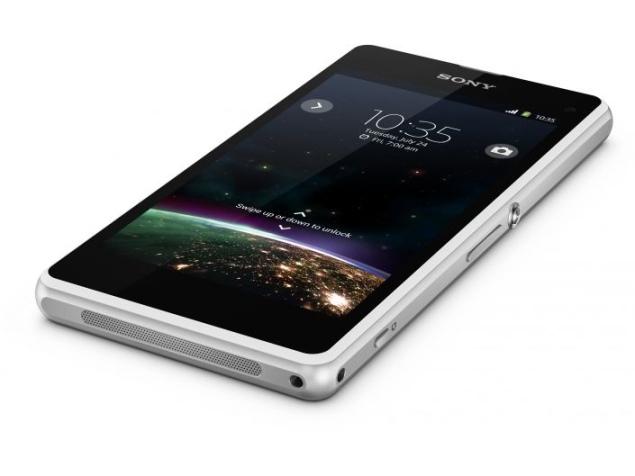
Sony Xperia Z1 compact has similar internals, except for the 20MP (on full manual mode, 8MP on full auto, after some bi-pixel conversion from Sony) camera which dwarfs the 8MP from the Ultra. However, the water-proofing and dust-proofing has left this phone too fat and too small (4-inch screen).
Sony Xperia Z1 falls nicely in-between. Nice specs, nice camera, water-proof, dust-proof and premium. Then comes the price.  The big price difference compared with the Nexus 5 can indeed put a pause in the buying. Except for the 20MP camera (again on full manual, 8MP on full auto) and the element proofing, the other added value would be the removable SD card. But when you already have a dedicated Sony WX80 camera with a 16MP sensor which can be remotely controlled by your phone, it makes you think twice. Also it makes you carry twice the amount of gadgets of course in the real world scenario. But buying a Z1 can make that WX80 purchase a little bit redundant if not for the selfie potential. Decisions, decisions.

Finally, it all boiled down to what is essential at the moment. A phone that has a very good specs without the high impact on the pocket. Also a phone that can be updated quite regularly would make it last longer (remember the TF101 story). The bad experience with HTC One X when it came to the software upgrade part really drove home a point, Nexus wins here by a mile, although Sony is not far behind in keeping their flagships up to date. Finally the vanilla UI which runs so seamlessly on the Nexus can never be matched by any Wiz or Sense, and that is also one of the essential considerations.

And so Nexus 5 it is. Very high CPU/GPU/RAM specs. Good to decent camera with hardware OIS from Sony. Comfortable enough to hold and in the pocket. Easily upgradeable OS direct from the source (Google). And a no fuss UI that just works, in a snap, fluid-like motion. Android as it should be.


Wednesday, April 2, 2014

Rethinking the Triangle Of Death


When this happens on your device at an unexpected time, out of nowhere when it suddenly decides to freeze on the OEM's boot logo, you begin to look back at what you are about to lose.

It's not everyday that you make a backup or even worse is, when you have a number of these different applications and services, the sheer scope of determining when and which app and data to backup can become so complicated that we tend to skip doing them at all. Sometimes we even think that well, they are probably backed up by the app developer somewhere in the cloud.

Well, honestly, not all apps have this cloud sync feature, not all even have a way to export data and make it easy for you to load exported backups. 

Pictures, messages, files exchanged and yes, stickers, those cute fancy stickers which means more than what they contain when received from a specific person are at risk of being lost when you see the Triangle of Death on your device. And what all these things represent are memories, moments that we think we can keep now that we are storing them digitally.

Well, the simple answer is no. These data are still either much pretty locally stored on the device, or on some instances they are stored where they are easily accessible (in the sd card of the device, which can be accessed directly as a normal USB storage device), and on really bad situations, they are even stored in an SQL lite database that only the app can access inside the systems folder.

So how to be TOD-proof? Here are some tips.

Pictures. 

Dropbox, Facebook, Google+ offer ways to automatically sync pictures from your device to your account in the cloud. They also offer to sync only when wifi is connected (to save your data plan) or even only when you are charging (to save your battery juice when you use a public wifi or a hotspot in your favorite coffee shop). You can opt to save on full resolution or on lower resolution (2048px on Google+, unlimited). The former means you need to have a bigger cloud storage, the latter means you may get unlimited storage, your choice.

Chat Messages (and pictures sent around)

Line and Viber are the most commonly used messaging app (probably Whatsapp, before the FB takeover) but they are also the worst when it comes to back ups.  

Line indeed has an email registration, but there is no mention of storing message history or even pictures exchanged using the service, linked to this email account.  Worst is activating the same email account on another device, effectively deletes your chat history on the older device.

Viber on the other hand has the option to export the chat history but no way to load them back after a reset (or even on a new device). There are ways to do this of course but then, without these techy people going through the same pain, we mortals would have not known how to do this. Viber also stores photos exchanged in another folder inside the Photos/DCIM. This means you can pull them out when you access your device as a USB storage, or on best cases, when doing a factory reset, or even a wipe, there is an option not to include files in the secondary storage.

So in short both Line and Viber do have a very poor recovery on a TOD situation (or an upgrade scenario as well). So think twice when relying on these services to collect your group chat memories and/or special someone moments.

Here is where Hangout shines, because it keeps your chat history (there is also an option to not keep the history), messages and pictures exchanged in the process. Thanks to integration with Google+, the pictures are stored in your Google+ Photos as well. No fancy stickers here though but at least the emoticons are saved as well. Also all accessible via the Hangout plugins in Gmail or Google+.

Files, Documents, Spreadsheets

Google Drive is a one stop shop here. And if you are even still using Gmail as your trusted storage, yes, attachments can be moved to Drive from Gmail. The alternative would be to split things up, Dropbox for files, Gmail for attachments, Spreadsheet files synced to Dropbox but opened by another spreadsheet app can be clunky and prone to too-many-steps syndrome.

Music, Books, Media

For this part, solutions can vary, but if available in your country, use Google's, and that means Google Playbook and Google Play. An alternative would be Amazon Kindle, or some third party streaming service. However, for this area, cloud is already a given. Because stuff are bought online and linked to an email account, chances are you are just downloading an offline copy of what is already stored somewhere safe.

Contacts

Google Contacts is your best bet here. It is very much cross platform. Any email service is also possible but then again if they only handle email and contacts, then you need another app or service to do the others. That falls into too-many-steps syndrome as well.

So...

The trick is to decouple your important data from your device, automatically synchronize them in a reliable cloud service (most important is automatically!) and select the services or apps which allows you to do both above. 

And as long as the above services are used and ensured that the sync is running perfectly, it will not be as difficult and frustrating when you are confronted with this once in a device lifetime scenario. Also this makes it a whole lot easier to do an upgrade later. One major advantage of using Google account is that whether you decide to stay in the Android fence or jump over IOS, when you sync your data through Google, it is still very much possible for you to access them on both platforms. 

If you are using non-Google apps another thing to consider is, are they in there for the long haul? Or they are just waiting for an investor to come and buy them and the subscribers on their service.  What's in it for them to keep the service running, and is there a way out for your data out? Because there is nothing as equally tragic as the Triangle of Death, as the Death of an App situation.

What about security, snooping...

Well, think about this: Snapchat and the false security of a deleted message against Google https and encryption. Also distributing your content across different apps and services makes it more difficult to ensure that each service provider has the same level of security. A bigger company like Google (or Apple) have so much at stake in ensuring a certain level of service guarantee, while a smaller company can always be at the mercy of the technology capability they can provide and the next bigger company willing to swallow them.

Friday, March 21, 2014

Android Marketing Must Start to Appeal to Non-Geeks in a Non-Geeky Fashion


Android users should really start to do more marketing instead of just showing off just geeky features that only Android enthusiasts appreciate. There is much to do on the platform other than homescreens, rooting, file access and other techy stuff. 

We understand, Android is really open for customization, cool. But what's in it with regular users who just wants to use the device in the regular fashion. Samsung is doing a great (if not hitting below the belt sometimes) job at speaking to the consumer language, so does Sony. But apparently it's not enough.

The video above is a clear example where Android is missing out. Jimmy Fallon and Billy Joel are doing a good job with a great device and a great application Loopy HD at $7.99.

Now a quick search at Google Play Store of a looping app, returns this LoopStack,price FREE. The video below by the app developer is simple, effective, lacking fancy flair but does deliver the message.


And the application has quite some fancy features as well like track stacking. Check it out at the Play Store.

Of course the top video gets more visibility, promotion and appeal, the bottom one only after  some searching. Android should be marketed as not only a geek device or an Apple hitting device. The platform is more than that. We should see that more. 

Tuesday, March 18, 2014

Automate Sony Wifi Cameras When Your Phone Does Not Support One-Touch NFC

Sony One Touch Marketing
When Sony introduced the One-Touch feature on its devices, it was a smart way to make use of NFC. What better way to seamlessly connect with other devices than to let the NFC chips do the talking. As good and cool as it may seem, not all devices can talk to each other this way. First both devices must have NFC chips inside, and the 'other' device you want to communicate with must allow this. All great and easy when you are tied up to one device manufacturer, like Sony and Samsung does (and like Apple does in general). But in reality, this is not the case.

However, there are ways to get around this and as always, the beauty of Android is that by default the ecosystem allows you to do so. Enter AutomateIt, from Google Play. This wonderful app allows you to 'automate' or 'program' what you want to do with your Android device. 

AutomateIt from Google Play Store
Now with AutomateIt, it is possible to somehow emulate what happens when the NFC handshaking is established and the expected applications are automatically launched. 

How? By making a rule which detects the devices (through Wifi for example) and selecting the application you want to launch when this happens.

Example case is the Sony DSC-WX80 Wifi camera. When such an AutomateIt Rule is set up, as soon as AutomateIt detects that the phone has connected to the camera's wifi access point, it launches the Sony PlayMemories application, and in an instant you can start shooting photos or videos.

It may not however be 100% the same as One-Touch, but it's much much simpler!

See the example rule below:

AutomateIt Start Screen
AutomateIt Sony Play Memories Rule. 

Do not forget to Save after you create this.


Monday, March 17, 2014

Practical Selfie Guide: Sony DSC-WX80, monopod and an Android Device

Just when selfies, as a form of self-expression, are gaining a lot of attention from both sides of the social spectrum (e.g. haters and lovers), the use case of having a portable device that can be mounted on a pocket monopod, and be remotely triggered from your mobile device has never been so timely.

Well, sometimes, there is not just enough juice from a phone camera, may it be in the form of image stabilization, megapixels, sensor-size, lighting or LED flash. Unless you want to risk looking weird each time you take a shot, review the result, recompose and repeat the trial and error of taking a good shot from the high end back camera of most high end smartphones, most of the time the lowly front camera is the only available means to get that shot with you and that touristy spot in the background in a normal fashion, albeit, with a decent composition.

Here comes the best setup so far, for less than half of  the latest Samsung Galaxy S-thing:

The Sony DSC-WX80 compact digital camera...

Wifi smartphone control option... shown here in German...

The trusty monopod...
Sony PlayMemories application on the smartphone...

Good old HTC One X can still do a good job of supporting this endeavor...

Nothing beats seeing what you are taking a picture of, right at the palm of your hands (the one holding the phone of course) and being able to adjust the composition before taking the shot, thanks to the wifi remote control feature. Wide angle lens allows more of of the background in, or more faces to squeeze inside the frame. And the longer reach of the monopod allows for more creative shots (ever wondered how you would look like from the security camera point of view).


And when you are done, the app automatically pulls the photos into your phone, both being a plus and a minus; a plus because you instantly have the photos to feed your social media sharing urge, a minus because succeeding shots are not possible until the photos are fully transferred. Good thing is you have the option to transfer the images at full resolution, the 2MP version and for some strange reason the VGA one as well, to speed up this process. The save option can also be turned off, and choosing to instead 'send the photos to a smartphone' from the camera also does the same job, much later.

All the settings are done in-camera while the app can be used to control the flash unit when taking photos, and there is an option to record the video through the phone as well. Other than that, Sony takes care of the exposure setting, depending on the shooting mode selected. Some fancy options such as blurred background, HDR and sweep panorama are standard on the camera.

What makes this package appealing is that the WX80 only costs a third of Go Pro. Of course the setup is not even in the vicinity when it comes to ruggedness and versatility in all conditions. However, it also costs 20% less than the nearest sibling, QX10, with much more feature in the way of being a dedicated camera with its own 240K LCD screen and access to a dedicated flash. The only missing feature when paired with a supported handset is the NFC One Touch pairing. Nice but it does not take too much time to start the camera wifi, start the phone wifi and connect to the camera, open the PlayMemories app and start shooting (the phone should already have connected by the time the end of this sentence is reached).

All in all, the compact size, excellent image quality for this category and a very good price on the wallet, makes this camera a real value for money. PC Mag has a more detailed spec review. Of course this is assuming you have a smartphone already since IOS also supports the PlayMemories app (thanks Sony for being open). The monopod should cost you less than 10 USD online. But do make sure you buy the one exactly like in the image above since it has a lock mechanism should you want to put the camera at odd angles and expect it to stay in that position.

There is not much to write here about the battery life, since for sure having two separate batteries is better than having one. Image quality is already available in most tech blogs and hardware reviews. But the deal here is the complete package as a selfie device, or if you just want to be always in the photos without having simply a front camera version of you in a fancy background pasted like a scrapbook photo with the rest of your gang.

Source: Techradar


Child Proofing Your Android Device - Series 2


Series 2: Study Time
Tablet OS: Android 4.0 and higher
Area: Time Management

There are parental control apps in Android which restricts the ability to use certain apps and also restrict the time when they can be used. The drawback however is either these apps really shouts out that they are there to restrict, or worst, they are skinned too much that they look like totally different from what Mom and Pops are normally using.


Another approach could be using task automation apps to 'silently' monitor the time and trigger an event on the device with the right combination of alert message and the opportunity for the child to voluntarily respond.


Llama at Google Play Store
One such trick is by using Llama, originally an application for location profiling, it can also be used to silently do the job of time management. Where Llama is good at is at being invisible in the background while also being simple to customize. No fancy UI, just the bare bones options to add an event, the right conditions and trigger an action or a series of actions.

The key steps are:
  • Define the time period:
    • e.g. Time between 6:00 PM until 6:00 AM
  • Define the right conditions:
    • When the Home application is at the background, which means an app is running in the foreground. (e.g. the child is playing a game or watching a YouTube video.
  • Define the right action:
    • Send a toast message: "It's time to study! Save the game and continue again tomorrow."
    • Launch the Home application.
    • Re-trigger the event every 1 minute, in case the child decides to play some more or wants to save the game.

Here is an example screen grab from Llama.

Step 1: Creating the Event trigger. The setting below will launch Nova Home launcher when the trigger is activated, which brings the tablet to the home screen. The child can still go to the recent apps button to go back and save the game or bookmark whatever he or she has been watching.


Step 2: Going into the Advanced setting to set the retriggering. Set the event to repeat every 1 minutes to allow the child to voluntarily respond. The repetitive messages will finally get the message across without being abrupt.


Step 3: And finally seeing it all come together.


Tips and Tricks:

  1. This is best done with a Launcher application since Android by default does not show the system Home application in the selection of apps to trigger.
  2. Adding the Llama app as an exception in the rule allows you to go to the Llama app and disable the trigger, else the tablet cannot be used unless you are out of the time period covered in the trigger.
  3. You may use Llama for more event automation, one example is to automate volume profiles and so on.

Sunday, March 16, 2014

Child Proofing Your Android Device - Series 1


Series 1: Restricted Profiles
Tablet OS: Android version 4.3 and higher
Area: App Accessibility and In-App Purchases

In Android 4.3 and higher, it is possible to setup multiple user profiles with one user profile set into a Restricted Profile mode. 

This mode means, that only certain applications which are allowed by the main device owner are available to the user of the restricted profile. This is very useful for parents sharing the same tablet or mobile device with their children. 

Aside from creating a dedicated environment for the child to 'freely use' the device, the restricted profile removes the annoyance of predefined passwords on restricted apps that further prompts the curiosity of the child as to what the restricted app is for. 

Step 1: The device owner should go to Settings> User.


Step 2: Click add User Profile. Select Restricted Profile.

Step 3: Android will show a list of currently installed apps, the device owner will select the apps that the restricted user are allowed to use by sliding the switch from Off to On. By default all apps are set to Off.


Step 4: After selecting the allowable apps, touching the back button returns to the User Profile setting page. Android will indicate and prompt the device owner to setup the restricted profile. This will log-off the current user, and the device will go to the lock screen showing the device owner and the newly created user profile.


Step 5: Login to the restricted profile and make the necessary customizations like wallpapers, app shortcuts, and so on. This part is making sure the user of the restricted profile has a proper homescreen to log into.

Step 6: Going into the app drawer will show and should show only the apps allowed to the restricted user.

Step 7: When new apps or games are installed by the device owner, it can be added again by going to the restricted profile and adding the newly installed apps from the list.

Tips:

  1. The device owner will be prompted to add a login password if it is not currently enabled.
  2. You can tap on the avatar of the user to add his/her photo, adding more personalization.

Child Proofing Your Android Device - Introduction


Admittedly, more and more kids are using tablet devices alongside their parents. Unattended the poor little fellows can unwittingly set off a purchasing spree, thanks to in-app purchases, banner ads and pop-ups that even a cautious adult can sometimes accidentally click into. Add to that the very thin line between the accessibility of mature apps and children apps or games. And when the kids get the hang off it, study times, or worst, meal times become a tug of war between the parent and the child.

In these series of articles, several examples of child proofing your tablet device is presented. It will also be indicated which device operating system is taken into account, which apps are involved and which area of child proofing: App Accessibility, In-App Purchases, or Time-Management, is being addressed.